
Let us guide you through the interface of Ediflo.
Login screen
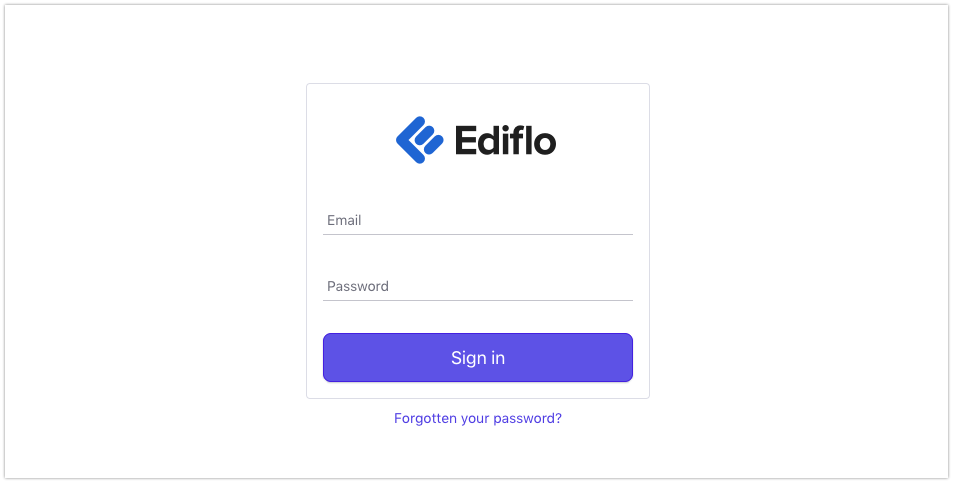
You should receive your initial login details from Ediflo team. If you forgot your password you can reset it by clicking "Forgotten your password?" link and providing the email address you use for Ediflo. Just follow the instructions that you receive in this email.
Main screen
Ediflo interface consists of 4 main parts.
Top bar
Top has 3 elements:
- Account selector that allows switching between the accounts you have access to
- Channels selector that allows switching between channels within the selected account
- Profile menu where you can view and edit your profile as well as access the settings
Main menu
The main menu allows you to select Ediflo content sections
List view
This view shows the list of content in the section that is currently selected in the main menu.
Search and filter
Search is used to quickly find content.
You can use modifiers to search for items with specific values of particular fields. Searching Glam it UP in the example above yielded multiple results. if you wish for the results of the search to be an exact match try including quotation marks like so "Glam it UP "
Sort & Filter
The list of items can also be sorted and filtered using the icons next to the search field. Here is an example of just a few of the ways a list can be filtered
List View Actions
Each Object will display some high-level information about the content and certain action can be taken from this view also by hovering over the object and selecting the 3 dots. Here are a few examples of actions that can be taken.
- Add to Collection
- Inspect (Asset or Series)
- Hold (Asset or Series)
- Delete (Asset or Series)
NOTE:: Deleting a series will not not delete the assets within
Content panel
The content panel shows full information about the selected item. Most of the content curation happens in this part of the interface. The structure of information this panel shows depends on the selected section of Ediflo:
For Assets (Videos)
- General metadata for the asset
- Restrictions
- Media of the asset
- Profiles added to the asset
- Resources of the asset
- Inspect
For Series
- General metadata for the asset
- Restrictions
- Media of the asset
- Profiles added to the asset
- Resources of the asset
- Inspect
For Collections
- Contents inside the version of the collection
- Versions of the collection and their properties
- Inspect and Deletion